Core concepts
The five ideas behind every MadMax workflow: steps and edges, JSON payloads and their envelopes, runs, and frozen snapshots. How data flows between steps.
Five ideas carry everything else in MadMax. Ten minutes here saves hours later.
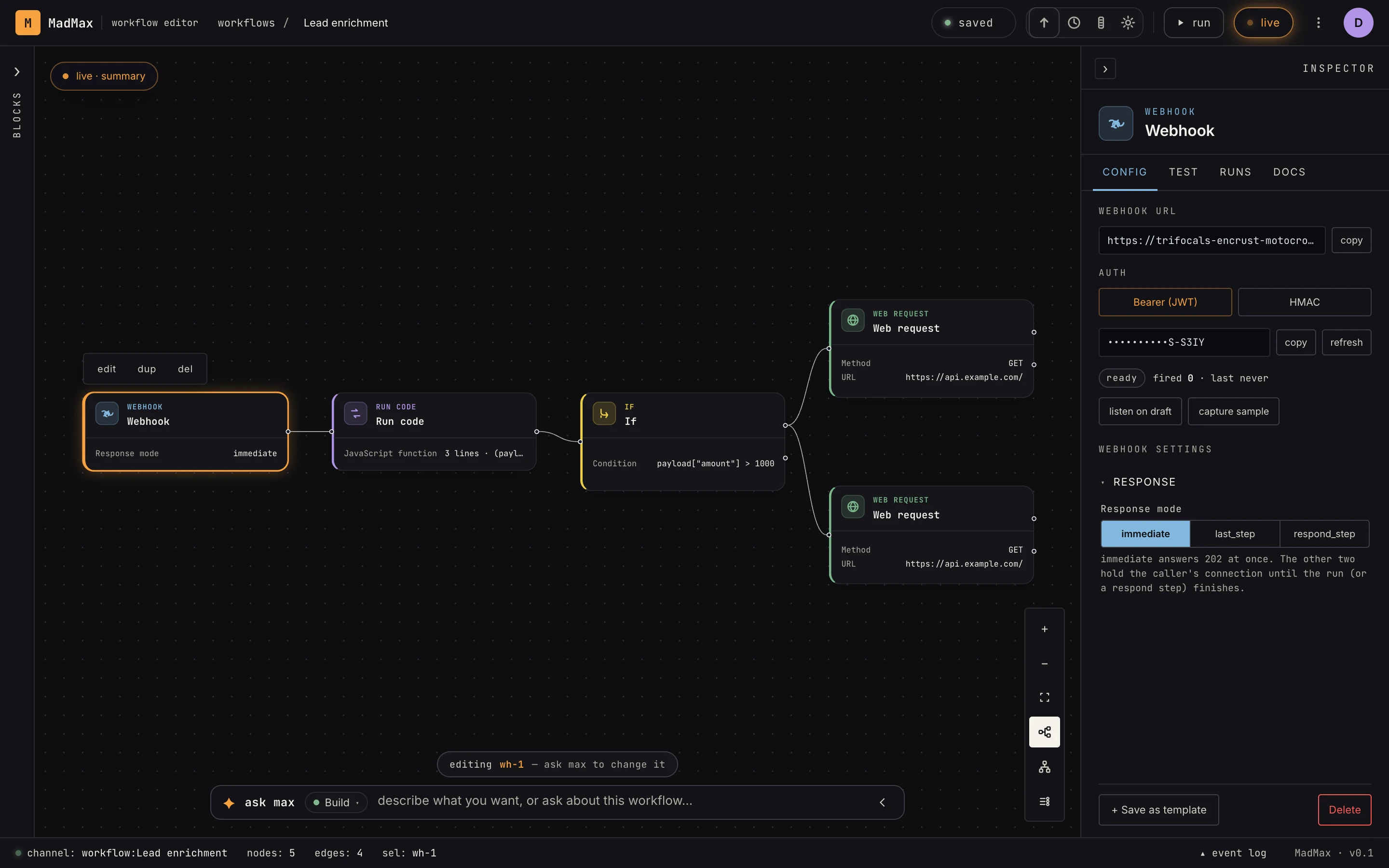 A workflow is a directed graph: a trigger starts it, edges carry data forward, each step transforms what it receives.
Workflows
A workflow is a graph of steps connected by edges, drawn on the canvas. It always starts at a trigger (webhook, schedule, form, or you clicking run) and flows left to right (or top to bottom, your choice). The canvas autosaves as you edit; there is no save button.
Steps and payloads
Each step receives a payload, a JSON object, from the step before it, does its work, and passes its output onward. Three rules cover nearly every "why is this empty?" moment:
- Payloads are always objects. If a step produces a bare list
or string (an API returning a raw array, say), it's wrapped as
{"value": ...}downstream, so you referencepayload.value, not the list itself. - Some steps wrap their output in an envelope. A webhook hands
you
{body, headers, query}: the caller's JSON lives underpayload.body.*, never at the top level. An AI agent with a schema puts your fields underpayload.data.*. Each step's docs page states its exact output shape. - Some steps replace the payload entirely. An approval step's
output is the decision, not the data that flowed in. If you need
earlier values afterwards, reference them by step:
{{ steps.<step-id>.output.<field> }}reaches any upstream step's output directly.
In config fields, {{ payload.field }} templates the incoming
payload and {{ steps.id.output.field }} reaches upstream. Logic
steps (if/switch/loop) use expressions instead: payload["field"]
with brackets.
Runs
When a trigger fires, the server executes the graph once. That's a run. Every step's input and output is recorded, so you can open run history and see exactly what happened, step by step. Runs can pause (a wait step, an approval waiting on a human) and resume without losing their place.
Snapshots and activation
Editing the canvas never touches anything live. When you hit Activate, the current canvas is frozen into a snapshot, and triggers fire against that frozen copy, so you can keep editing safely while the active snapshot serves. Re-activating captures a new snapshot; the old ones stay in snapshot history. Deactivating stops triggers; nothing is deleted.
The AI is a builder, not a black box
Max, the built-in AI, works with the same steps, edges, and verification tools you have. Anything it builds is an ordinary workflow you can open, inspect, and edit by hand. See AI workflow automation for how the plan → build → verify loop works.
Where to go next
- Build by hand: make your first workflow without the AI, to feel each of these pieces.
- The canvas tour: what every panel does.