Bundles and folders
Folders sort workflows. Bundles also share accounts: pick one Slack or GitHub account in a bundle's settings and every workflow inside uses it.
The workflows page has two ways to group workflows. They look alike, and both open the same notes modal, but they do different jobs.
- A folder only sorts. It holds workflows so the list stays readable. What's inside it has nothing in common except where it sits.
- A bundle sorts and configures. Its workflows share one account per app: pick a Slack account, a GitHub account, a Gmail account once in the bundle's settings, and every workflow inside uses it.
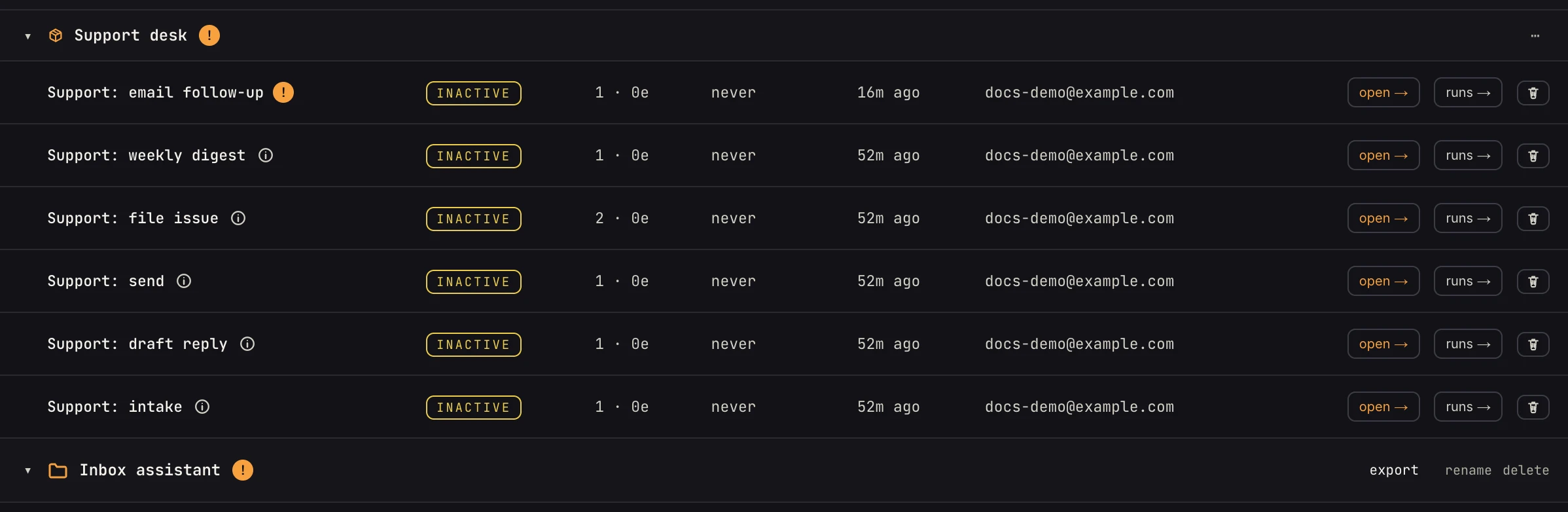 The box icon is a bundle; the folder icon is a folder. Both collapse, both take notes.
Why folders exist
Most workspaces end up with dozens of workflows that have nothing to do with each other: a weekly report, a webhook relay, a form that files a ticket. A folder groups them by team, project or whatever makes sense to you, and that's all it does. Moving a workflow into or out of a folder never changes how it runs or which accounts it uses.
Folders nest one level, collapse, carry notes, and export as a zip. See the workflows page for the details.
Why bundles exist
Some workflows only make sense together. A PR review bot is seven workflows: a router that receives GitHub's events and six it calls. A support desk is an intake workflow and the four it hands work to. Every one of them talks to the same GitHub or the same Slack.
Without a bundle, each step in each workflow has its own account picker. Connecting the PR review bot means picking the GitHub account 27 times, and switching it to a different GitHub App later means finding all 27 again. Miss one and that workflow quietly posts as the old account.
A bundle holds that choice once.
Open a bundle's i (or its amber !) and the modal has three tabs:
- notes: what the bundle is and how its workflows fit together.
- workflows: every workflow in it, the ones needing setup first, each saying what it still needs ("needs Gmail", "1 value to fill in") with its own on/off switch. Filter to all, needs setup, ready or active.
- connections: one row per app, with the account the bundle uses.
The modal opens on notes, and the tab badges say what's left ("2 need setup", "2/3"), so you can see what needs you before switching tabs.
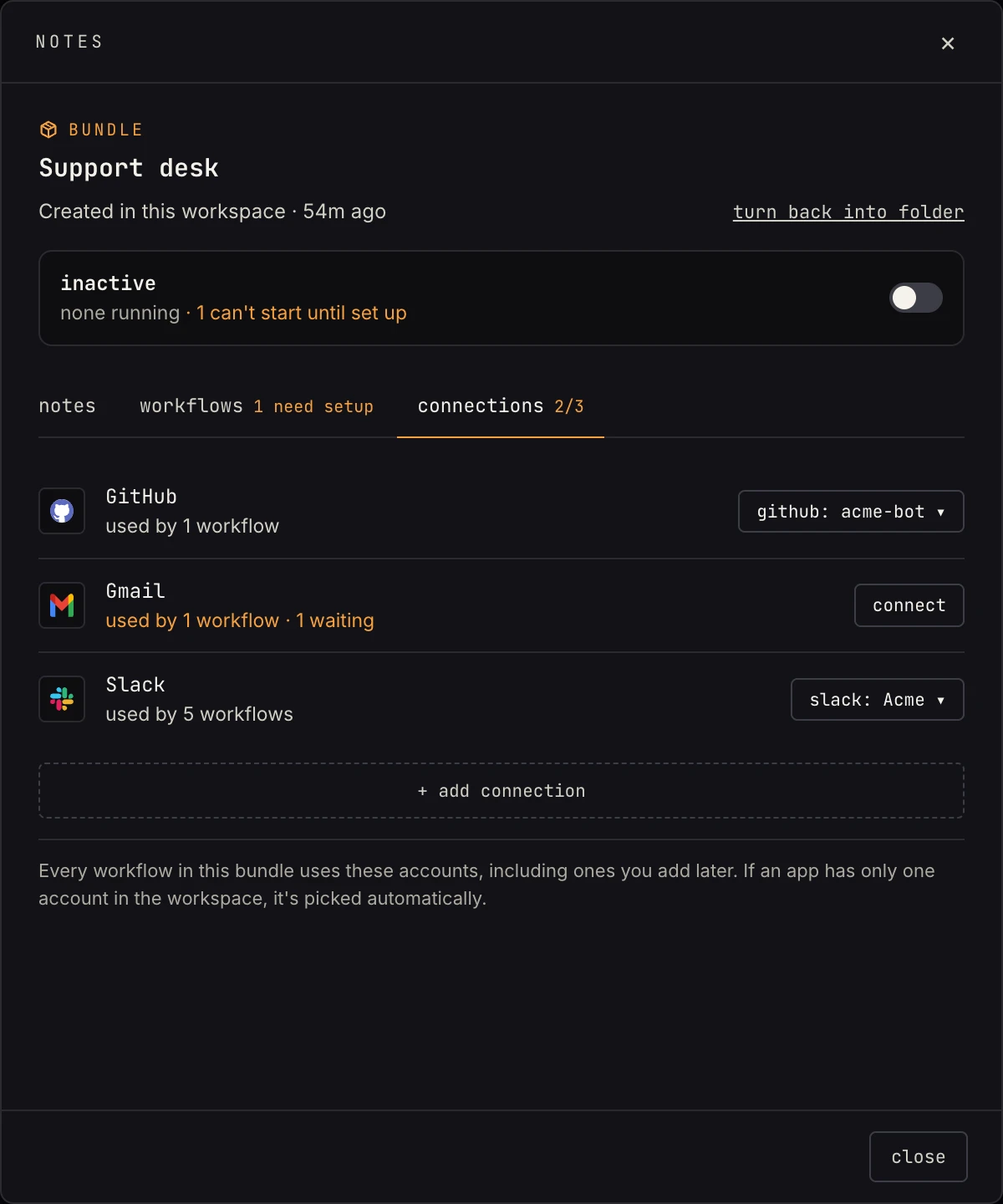 The connections tab lists each app the bundle's workflows use, with the account they share.
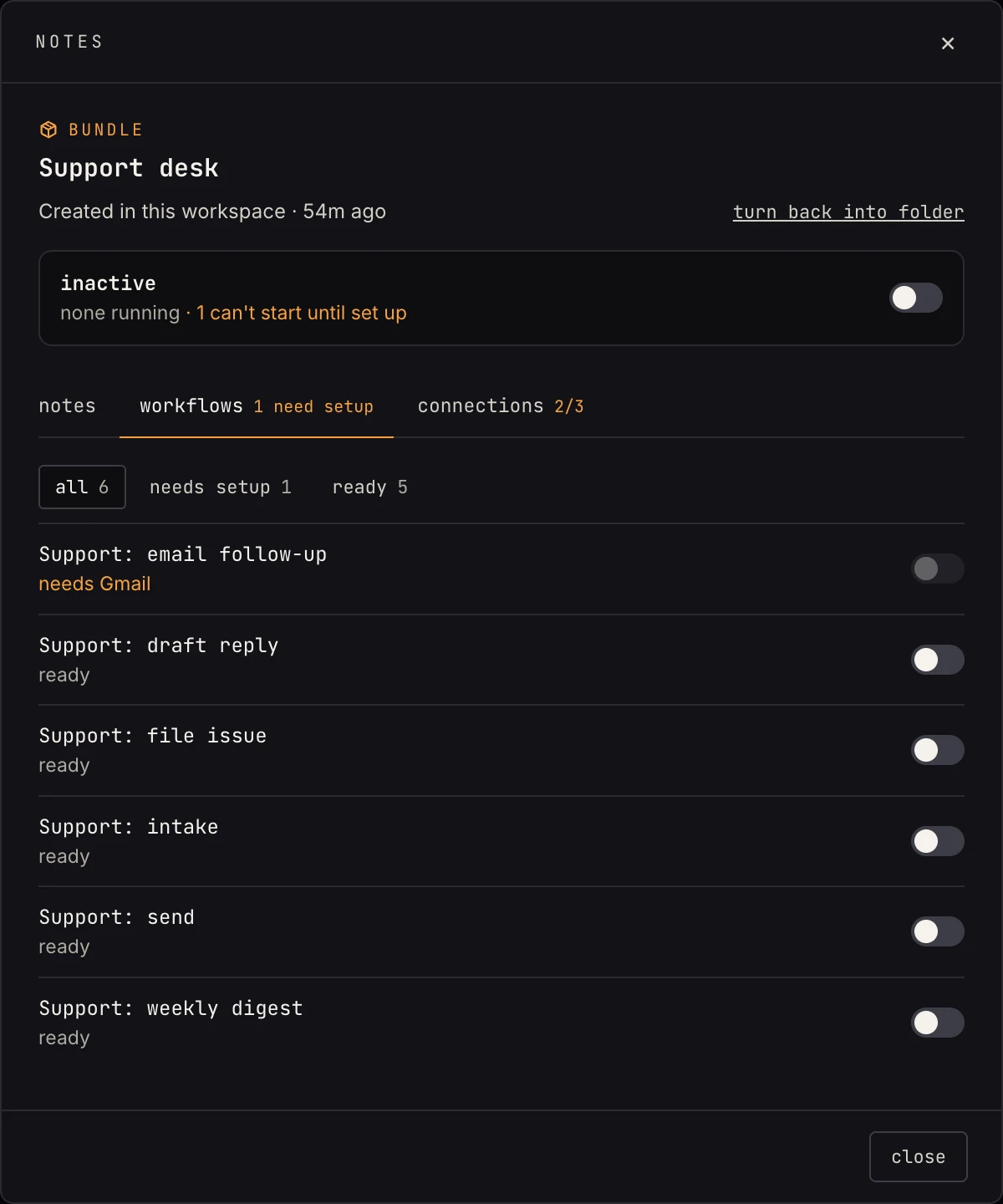 The workflows tab puts what needs setup first and says what each one is waiting for.
- One account per app. Each app the bundle's workflows use has a row on the connections tab. If the workspace has exactly one account for an app, it's picked for you.
- Changing it updates every step. Pick a different account and every step that got its account from the bundle switches, in every workflow, including active ones. A toast says how many steps changed, with an undo.
- New workflows join in. Drag a workflow into a bundle and its empty steps take the bundle's accounts.
- Your own picks stay put. A step where someone picked an account by hand, in the Inspector or with Max, is never overwritten by the bundle.
- One switch for the set. The switch above the tabs turns every workflow in the bundle on or off; each workflow also has its own.
A workflow's own modal shows which of its steps take their account from the bundle:
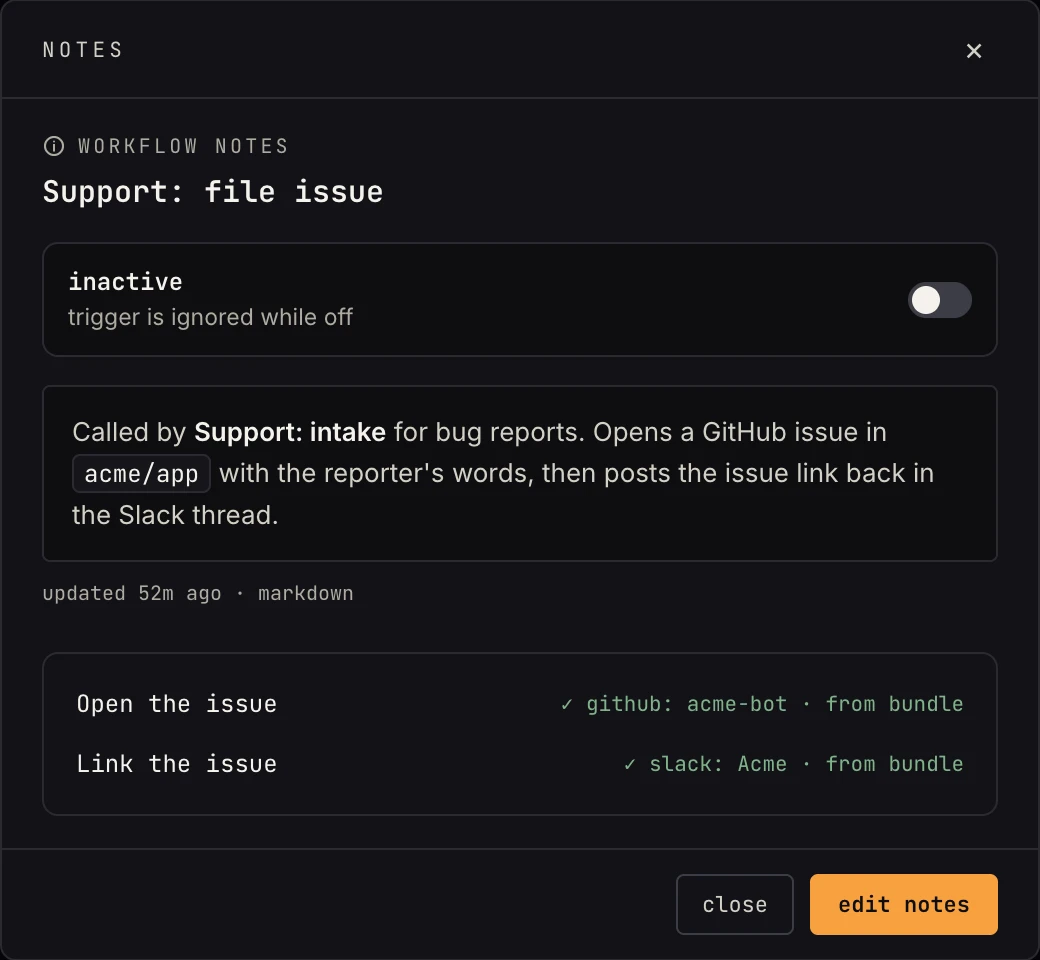 "from bundle" means the step follows the bundle's settings.
Which one to use
| Folder | Bundle | |
|---|---|---|
| Groups workflows in the list | yes | yes |
| Notes | yes | yes |
| Turn everything on or off at once | yes | yes |
| One account per app, shared by every workflow | no | yes |
| Changing an account updates every workflow | no | yes |
| Can sit inside a folder | one level deep | yes |
| Comes from installing a multi-workflow template | no | yes |
| Published to the template store | no | yes, from the bundle's ⋯ menu |
Use a folder when the workflows only belong together in your head. Use a bundle when they work as one system and talk to the same apps. A bundle can live inside a folder, so a team folder can hold loose workflows and a bundle or two.
Switching between them
- Folder to bundle. Click
+ new bundle, name it, then drag the folder's workflows onto it. Steps with no account yet take the bundle's account as they arrive. Steps that already had an account keep it as their own, and the bundle leaves them alone. - Bundle to folder.
turn back into folderin the bundle's modal makes a folder of the same name. Every workflow keeps the accounts it has, now as its own. - Deleting a bundle moves its workflows to wherever the bundle sat, keeping their accounts, unless you tick the box to delete the workflows too.
Templates install as bundles
Installing a template with more than one workflow from the template store creates a bundle, so connecting it is one pick per app instead of one per step. The bundle's modal says which template it came from, with a link back to the store.
Over the API
Bundles have their own REST routes under /api/v1/bundles: list, create,
rename, notes, settings, set an app's account, add or remove an app,
apply, turn back into a folder, and delete. Move a workflow in with
PATCH /api/v1/workflows/:id/move and a bundle_id. Over MCP the same
actions are tools: list_bundles, create_bundle, get_bundle_settings,
set_bundle_connection, apply_bundle, unbundle, delete_bundle, and
move_workflow. Full list: REST API.
Where to go next
- The workflows page: folders, notes and the needs-setup cue
- Managing connections: adding the accounts a bundle shares
- Import & export: what travels with a folder