Slack automations from MadMax, the AI workflow builder.
Describe a workflow and MadMax's AI builds and verifies it on a visual canvas. The Slack app lets those workflows post alerts and digests to channels, run one-click approvals, and answer team questions from your docs — without anyone writing code.
Free to start · installs in about a minute · remove it any time from Settings
What it does in Slack
Every message below is posted by a workflow you described in a sentence. MadMax plans it, builds it, tests it, and keeps it running.
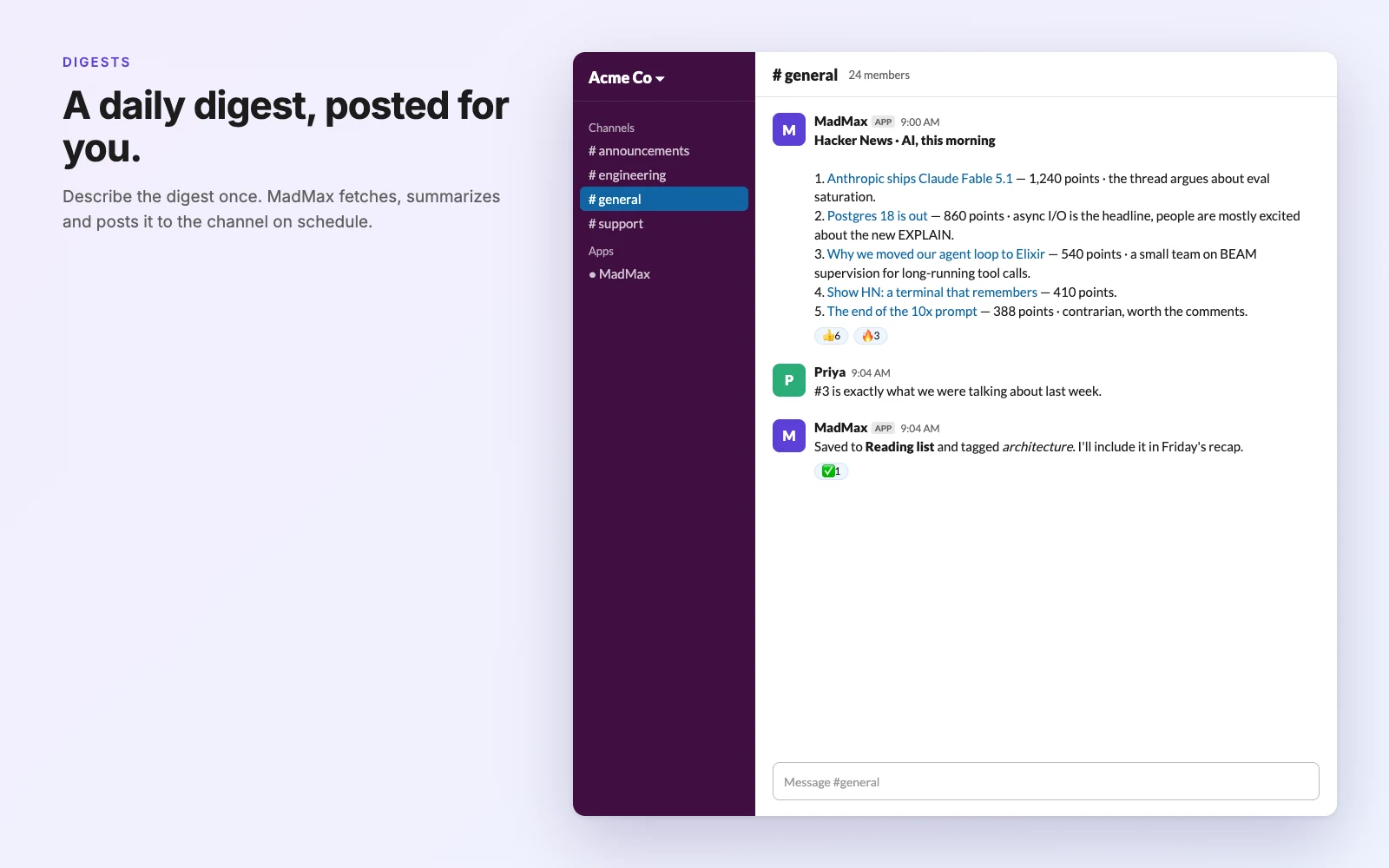
Scheduled or event-driven posts to any channel: a morning Hacker News digest, a failed-deploy alert, a weekly recap. Formatted, threaded, reacted to.
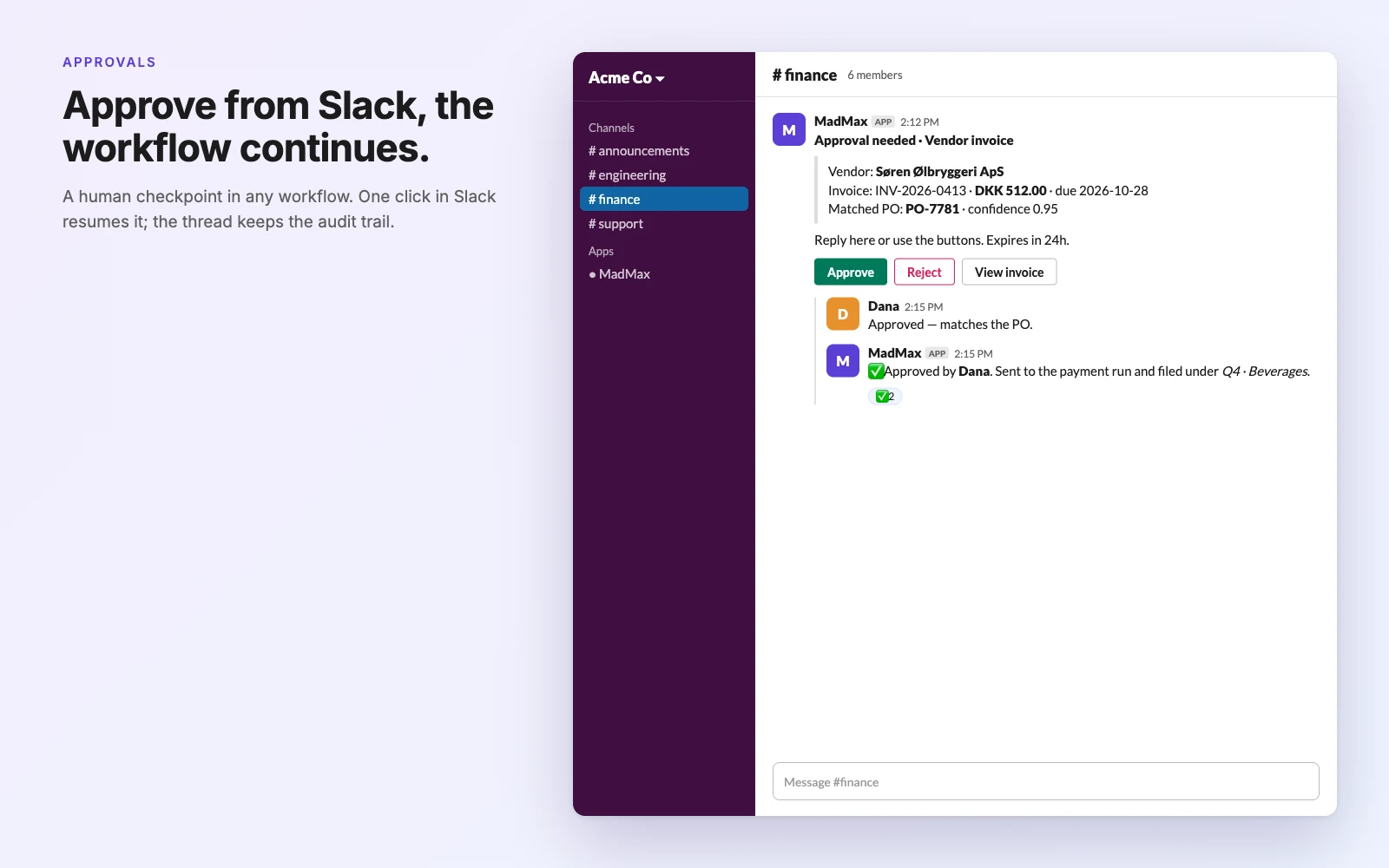
Put a human checkpoint in any workflow. Approve or reject from the Slack message; the workflow resumes and the thread keeps the audit trail.
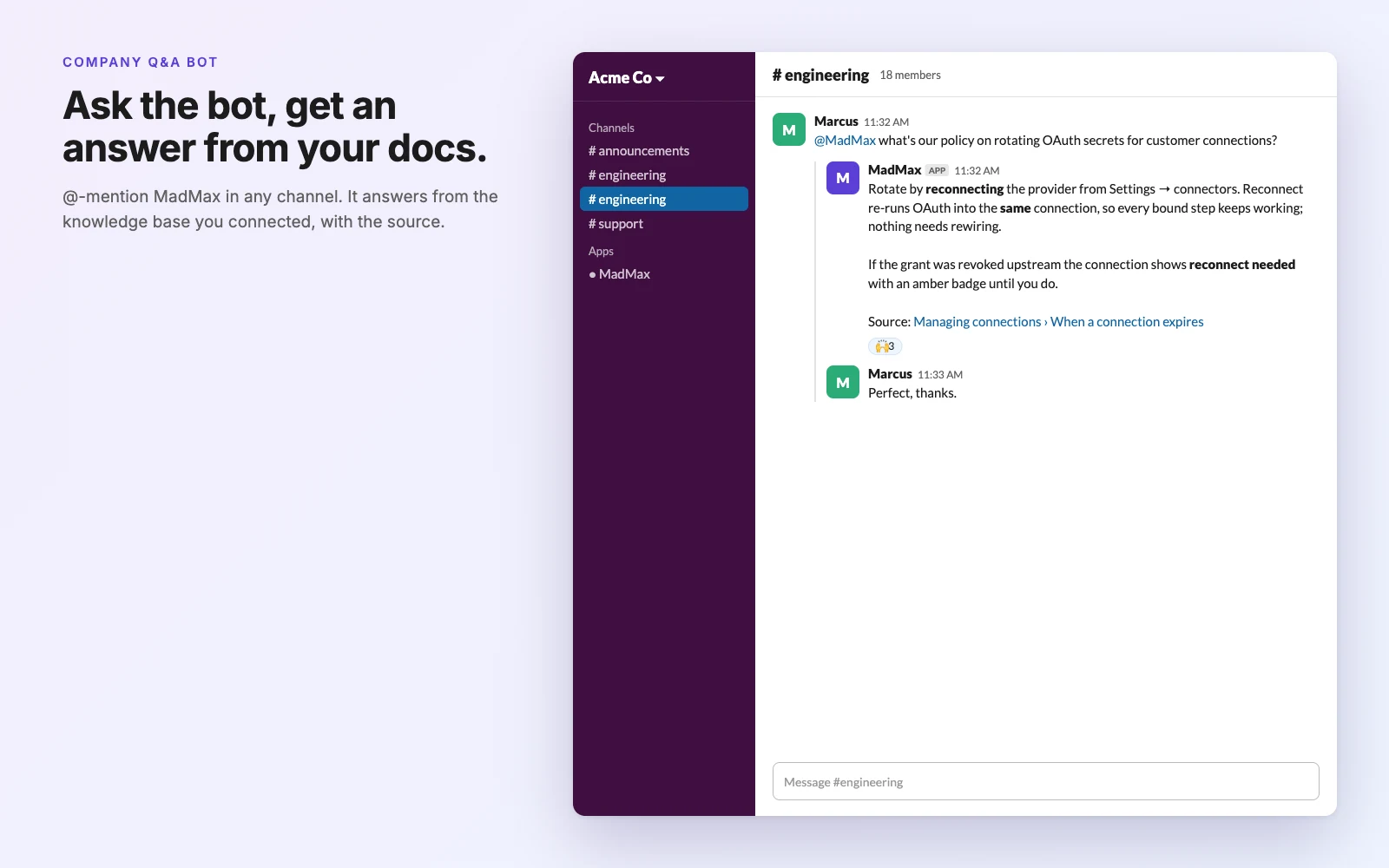
@-mention MadMax in a channel and it answers from the knowledge base you connected, citing the source.
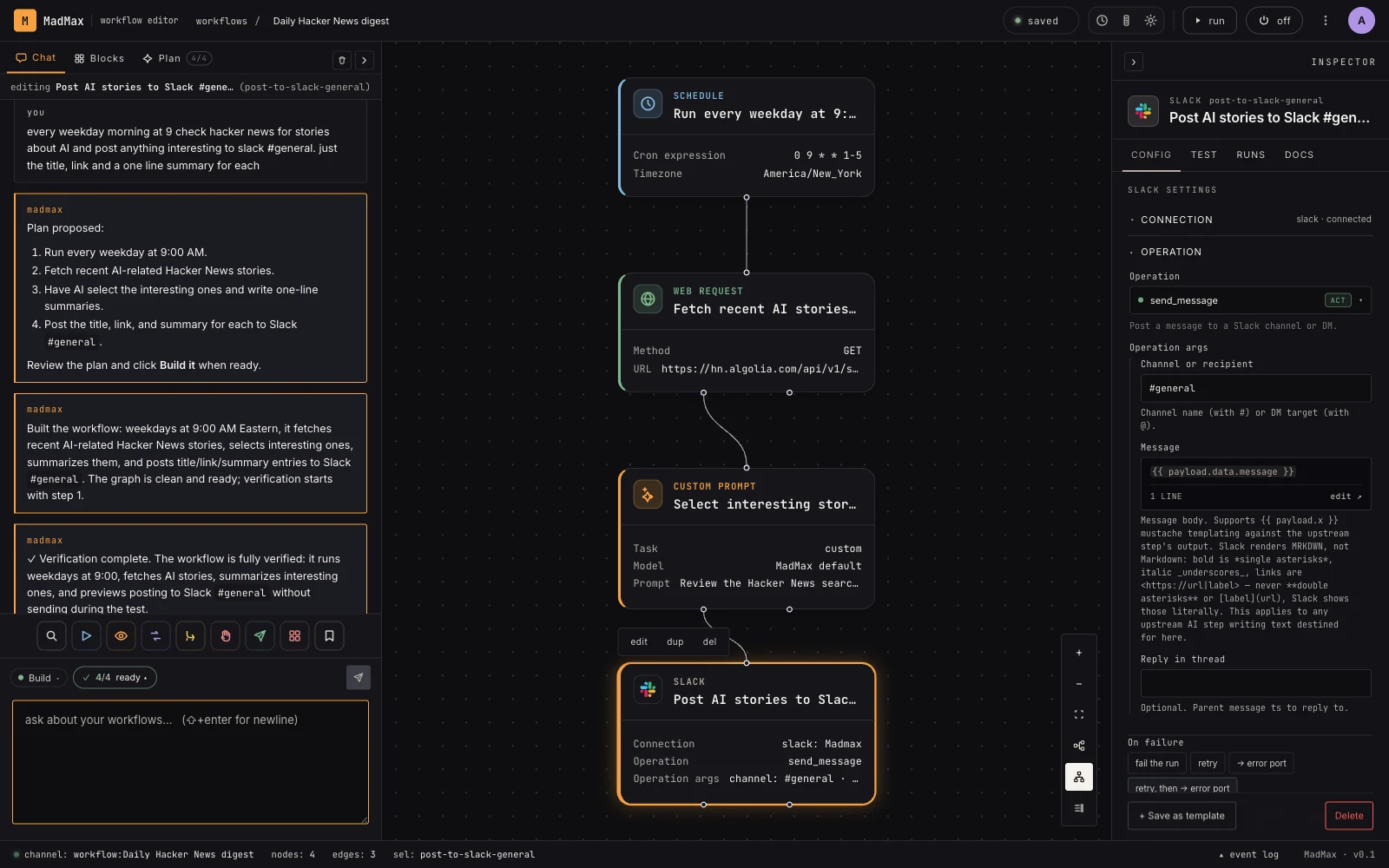
Each Slack post is a step on the canvas. Open it to see the connection, the operation, and the message template the AI wrote.
Install the Slack app
- 1 Sign in or create a MadMax account . It's a magic link — no password.
- 2 Open Settings → connectors and click Connect on the Slack card.
- 3 Slack asks which workspace to add MadMax to and lists the permissions it needs. Click Allow.
- 4 You're back in Settings with Slack showing connected. Done.
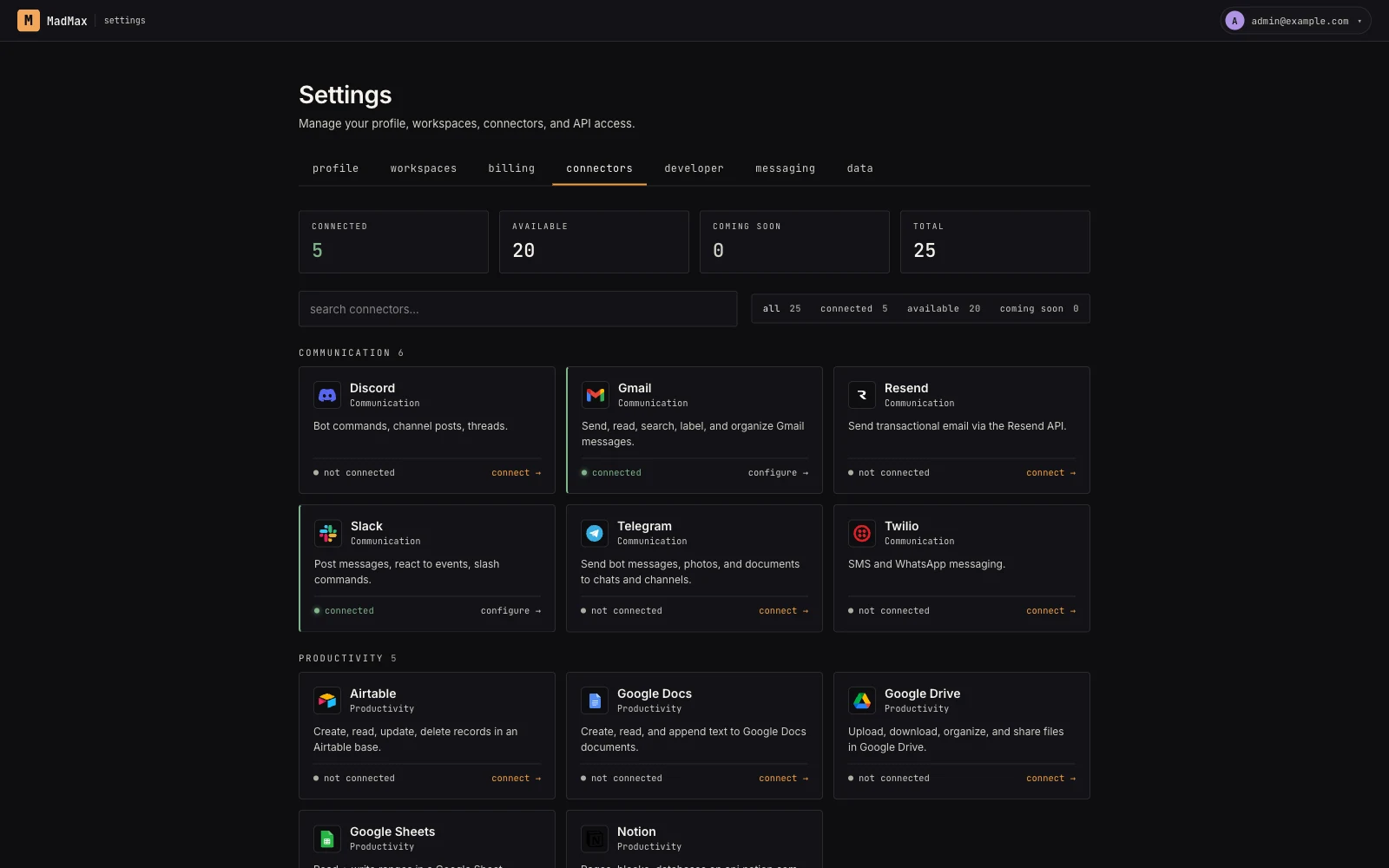
After you install
Open a new workflow and type what you want, for example "every weekday at 9, post the top AI stories from Hacker News to #general". MadMax wires in your Slack connection automatically.
MadMax can post to any public channel. To react to messages or @-mentions in a channel, add the app to it from the channel's details, or just mention it once.
When you click Connect, the Slack card asks for an optional default channel. Steps that leave their channel blank post there. To remove the app, click Disconnect on the same card.
Full guide: Connecting your accounts · Managing connections
Permissions it asks for
- Post messages — workflow output, threaded replies, DMs to a person.
- Read channels it's in — so message and @-mention triggers can fire.
- Add and read reactions — "seen" and "done" acknowledgements, and emoji-reaction triggers.
- Join public channels — so it can react or read a thread in a channel it posted to, without a manual invite.
- Read members — to match the person who mentioned the bot to their MadMax user for approvals.
Your data
- OAuth tokens are encrypted at rest and never shown after connecting.
- Slack content is used only inside your workflows and stored only where they write it.
- Nothing from Slack is used to train models.
- Disconnecting deletes the tokens and stops every workflow that used them.